For TopBusiness ERP users · Windows 10 and 11

TopBusiness Remote
your office PC, on your phone

Install TopBusiness Desk Host on your office PC once. From then on, open the ERP on your phone or any browser, tap My PCs and use that PC as if you were sitting at it — see the screen, click, type, copy and paste, and move files both ways. It is our own program: no outside remote-desktop service, and you sign in with your normal ERP user.

Windows warned you? Press More info, then Run anyway — why
Windows 10 and 11 (64-bit) · needs a TopBusiness ERP user with Remote
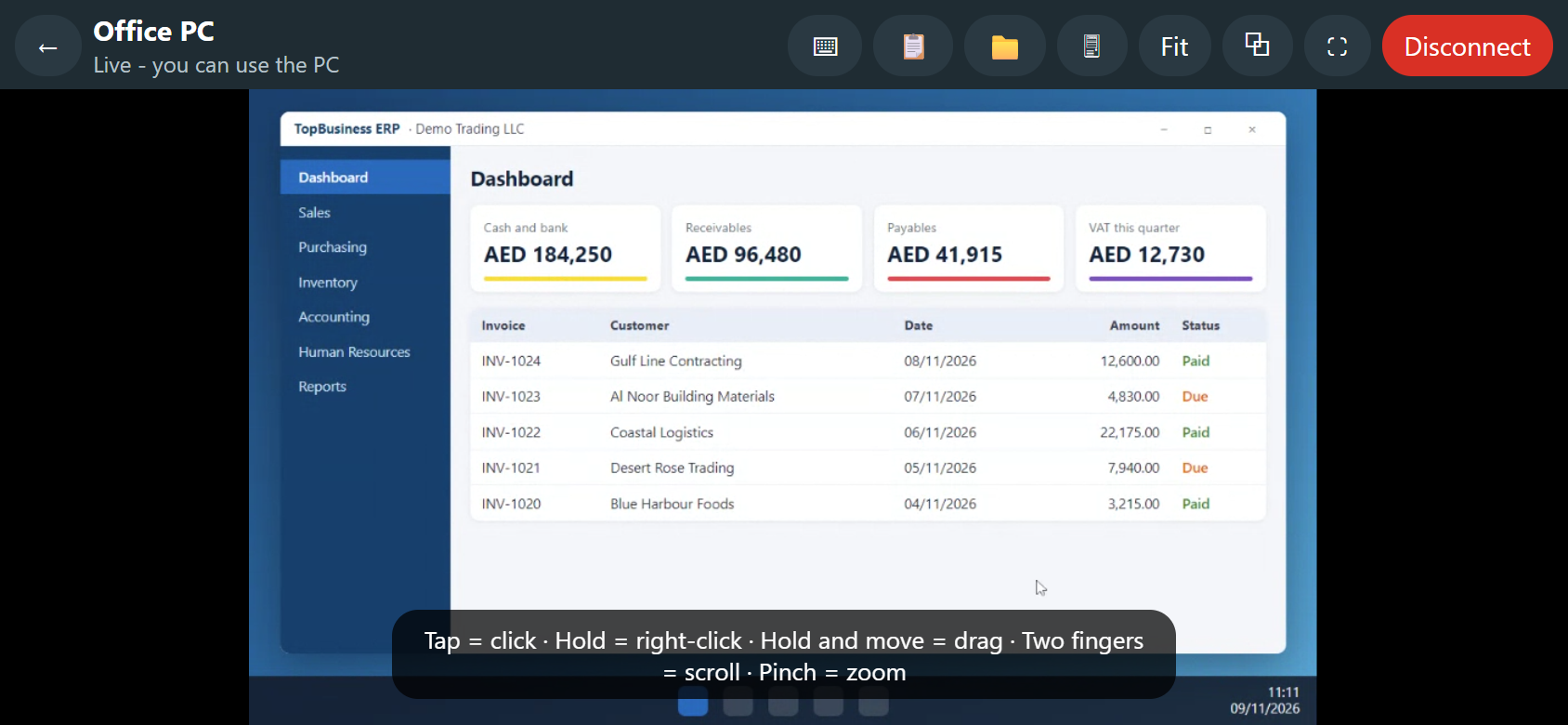
A phone showing the office PC screen live, with mouse and keyboard buttons

What you can do from your phone

See the screen live

The PC’s screen, sharp enough to read, smooth enough to work. Pinch to zoom on small text.

Mouse and keyboard

Click, right-click, scroll, type, and send keys like Ctrl+C, Alt+Tab and Windows.

Copy and paste

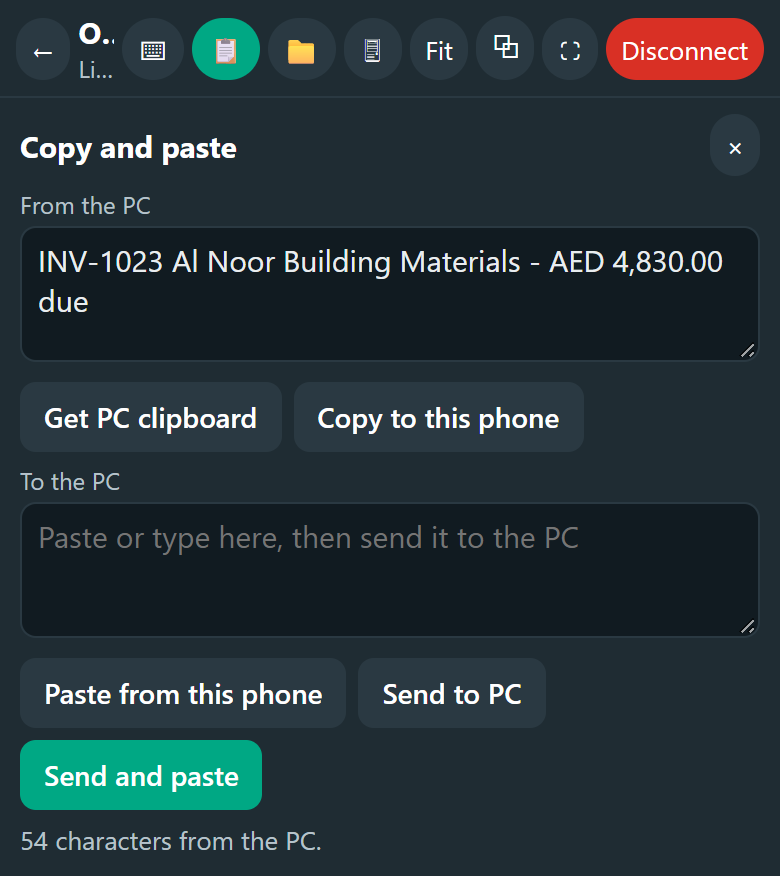
Bring the PC’s copied text to your phone, or send text from your phone and paste it on the PC.

Files both ways

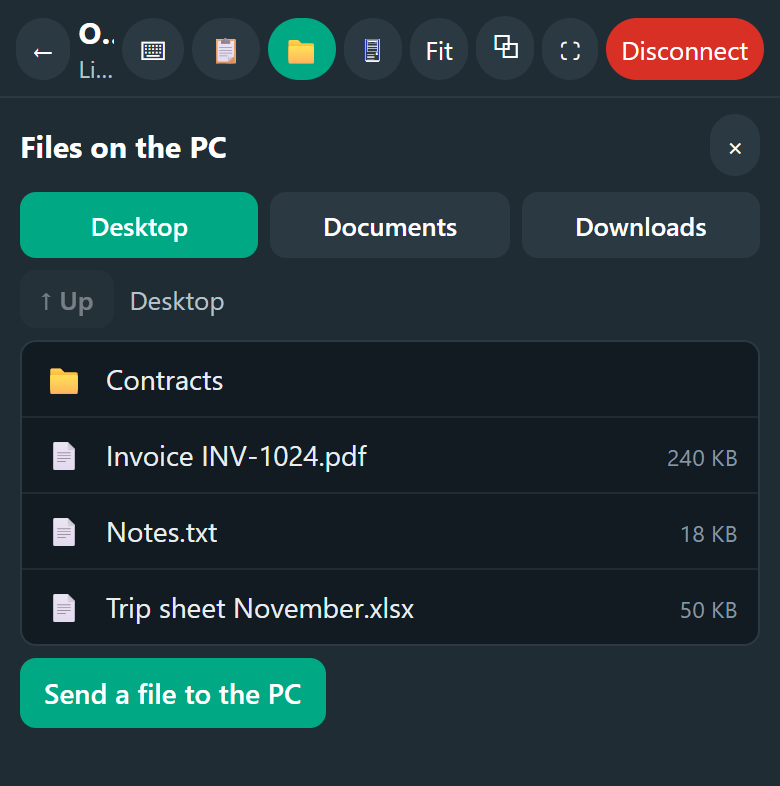
Take a file from the PC’s Desktop, Documents or Downloads, or send one from your phone to the PC’s Downloads. Up to 2 GB.

More than one screen

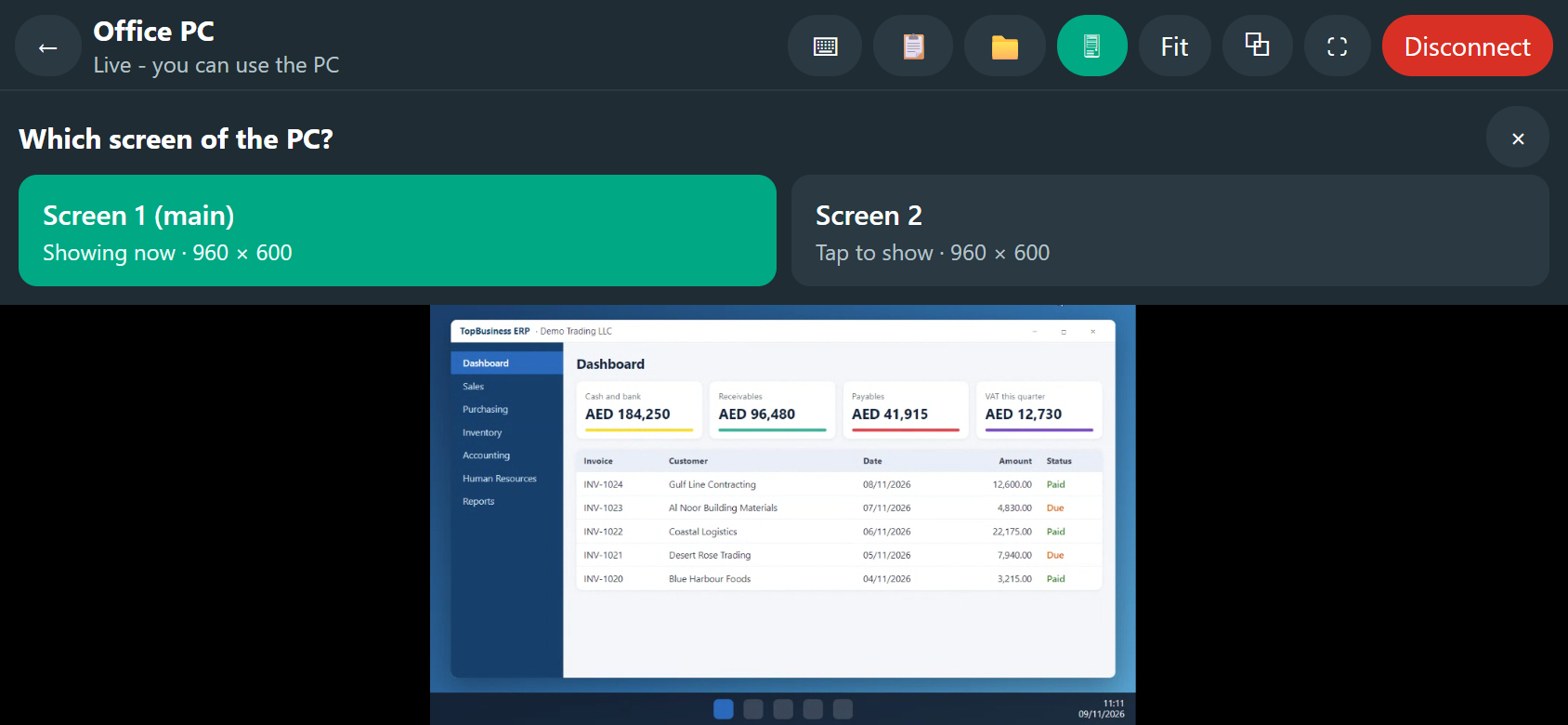
Two monitors on the PC? Pick the one you want to see and use. Your choice is remembered for next time.

Ready when you need it

Desk Host starts with Windows, and can keep the PC awake so it never sleeps or locks while you are away.

Any phone, any browser

Nothing to install on the phone: open the ERP, tap My PCs, tap your PC. Works in any up-to-date browser.

Always up to date

Desk Host updates itself quietly when nobody is using the PC. No downloads to remember.

Help your team too

Remote also lets you help a colleague on their Windows or Mac PC — only after they press Allow, and every session is logged.

Two screens on the PC? Pick one

Choosing which screen of the PC to see
See the screen you needTap the screen button and choose Screen 1 or Screen 2. The mouse follows the screen you are looking at.
  • Your choice is remembered for that PC next time
  • Plug a screen in or out and the list updates by itself
  • If the screen you are watching is unplugged, you are moved to the main screen

Ready in three steps

Install on the office PCDownload Desk Host above and run it. It sits next to the clock in the Windows taskbar.
Sign in onceUse your normal TopBusiness ERP user name and password. The PC then shows up in your My PCs list.
Open it from your phoneSign in to the ERP on your phone, tap My PCs, then your PC. The screen appears in a few seconds.

Safe by design

Files from the PC's Desktop, Documents and Downloads on the phone
Only you — and who you chooseYou see only the PCs you signed in yourself, with your own ERP user, plus any PC a colleague has shared with you. You can also set a PIN on each PC. Your ERP sign-in — including two-step sign-in if you use it — is what proves it is you.
  • Your password is never stored on the PC; Desk Host keeps its own key, locked by Windows
  • Change your ERP password and every PC signs out until you sign it in again
  • Each new sign-in of a PC is reported, like any other ERP sign-in
Private connectionThe picture, mouse and files go straight from your PC to your phone, encrypted end to end (WebRTC). When the two are on different networks, they pass through our own relay — still encrypted. No outside company is involved.

You stay in charge of the PC

Always visible on the PCWhile someone is using the PC, a bar at the top of its screen says who, with a Stop button. Anyone at the PC can end it at once.
View only when you wantUntick “Allow mouse and keyboard” in Desk Host and the PC can only be watched, not used. Files and copy-paste are switched off with it.
Files kept in their placeThe phone can only open the PC’s Desktop, Documents and Downloads. Files sent from the phone land in Downloads, and a half-sent file is deleted.
Copy and paste between the phone and the PC

Questions

Do I need TopBusiness ERP?

Yes. Desk Host signs in with your TopBusiness ERP user, and you open your PCs from the ERP. Remote is an add-on to your ERP subscription, for the whole company.

Which PCs can it be installed on?

Windows 10 and Windows 11, 64-bit. You can open the PC from any up-to-date browser — on an Android phone, an iPhone, or another PC.

Does the PC need to be switched on?

Yes — switched on, connected to the internet and signed in to Windows. Tick “Keep this PC awake” in Desk Host so it does not go to sleep or lock while you are away.

Can my colleagues open my PC?

Only if you share it with them. In My PCs you choose the colleague and for how long — 1 hour, until midnight or until you remove it. The colleague needs the Remote Help – Add right in User Permissions, which your administrator gives. While they use it, the PC shows their name; removing the share ends their viewing at once, and every viewing is in History. To help a colleague without sharing, use Remote Help: they see a request on their screen and must press Allow first.

Windows warned me when I opened the file

That is normal for new programs. If a blue box says “Windows protected your PC”, press More info, then Run anyway. If your browser says the file is not commonly downloaded, choose Keep. The file comes only from topbusinesserp.com.

Do I need to open ports or change my router?

No. Desk Host only connects out to the ERP, like a web browser. Nothing on your office network needs to change.

How many PCs can I add?

As many as you need. Each user can sign in Desk Host on their own office and home PCs, all on the same company subscription.

TopBusiness Remote and TopBusiness Desk Host are written by TopBusiness. Desk Host is built with Electron (MIT licence). Windows is a trademark of Microsoft Corporation; TopBusiness is not connected with Microsoft.
Add Remote — one price for the whole company

Remote is added to your TopBusiness ERP. Every user in the company can use it on their own PCs.

How to add it