For Android phones · Android 8 and newer

TopBusiness Authenticator
sign-in codes, safe on your phone

Two-step sign-in codes for Google, Microsoft 365, WHM, cPanel, Proxmox, GitHub, AWS and any website that shows a QR code. Scan once and a fresh 6-digit code is ready every 30 seconds. Your keys and codes never leave the phone. The app goes online only once a day to tell topbusinesserp.com that it is in use (app version, trial or registered, the trial start day, the app language, Android version, phone model and a random install number; if registered also the licence name, its number of phones and a coded licence number).

Android app (.apk) · no sign-up needed for the trial
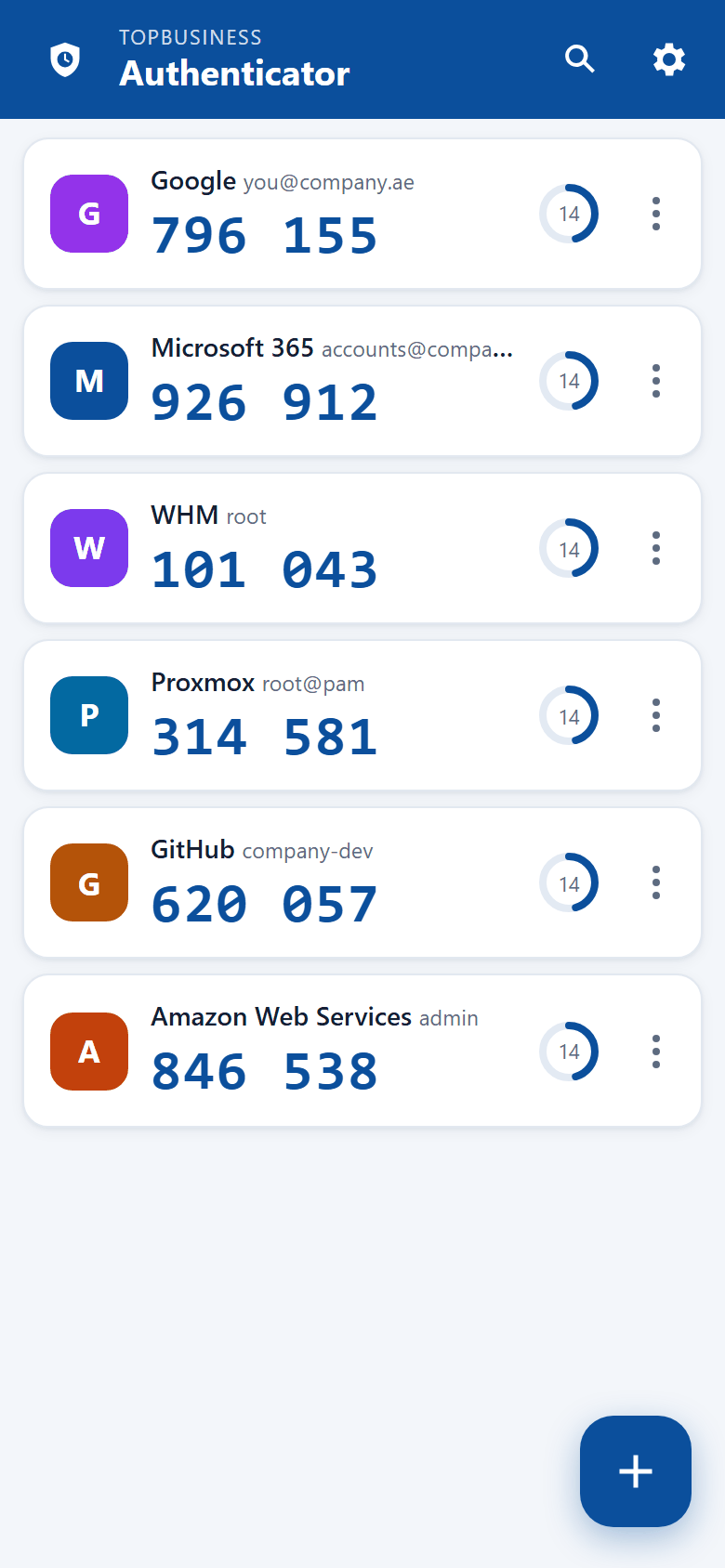
TopBusiness Authenticator showing sign-in codes for Google, Microsoft 365, WHM, Proxmox, GitHub and AWS
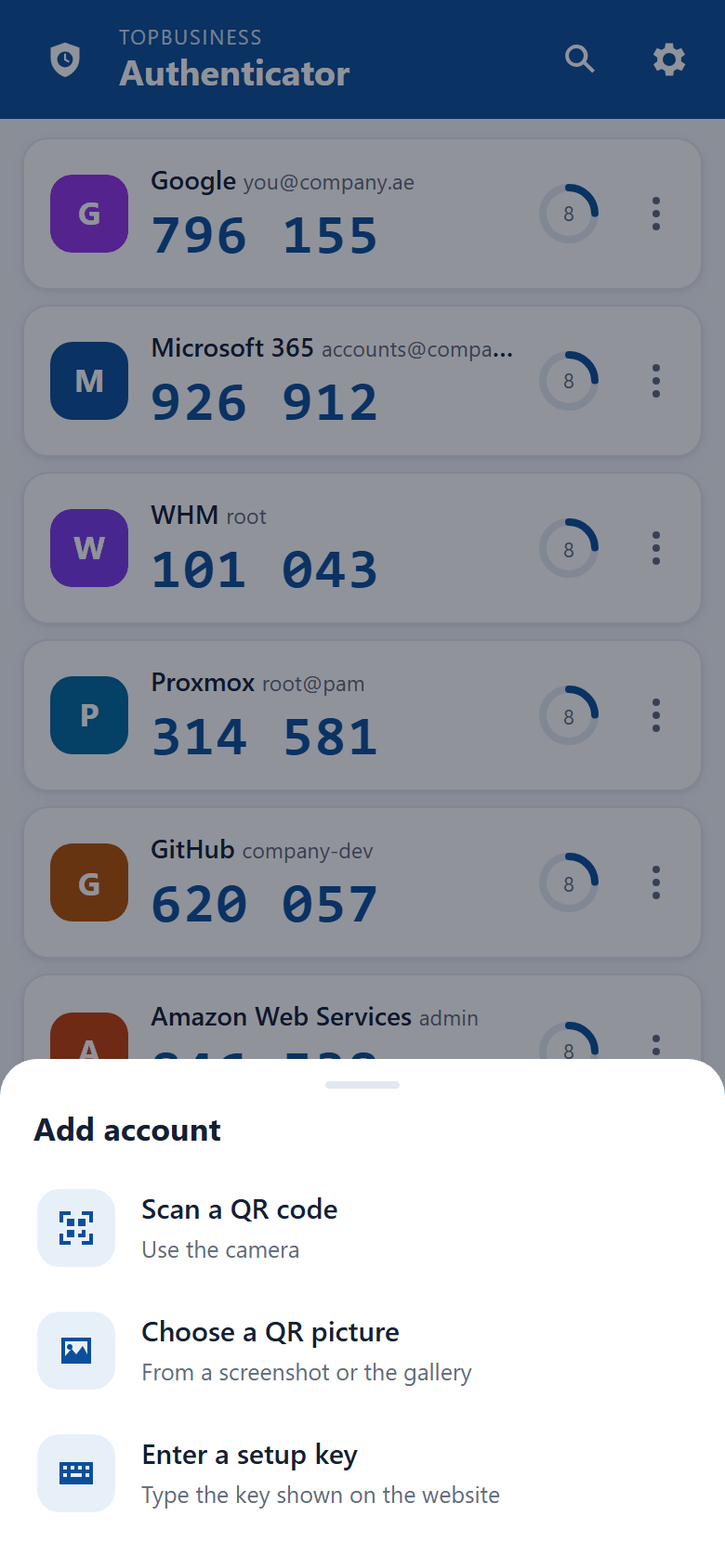
Add account: scan a QR code, choose a QR picture or enter a setup key

What it does

Scan and done

Point the camera at the QR code a website shows when you turn on two-step sign-in. The account is added in a second.

QR from a screenshot

Got the QR code as a picture or a screenshot? Choose it from the gallery — no second phone needed.

Type a setup key

No QR code? Type the setup key the website shows. 6, 7 or 8 digits, every 30 or 60 seconds, SHA-1, SHA-256 and SHA-512.

Easy to move

Use Google Authenticator’s “Transfer accounts” and scan its export code — all your accounts come across at once. New phone? Settings › Move to a new phone shows QR codes for the new phone to scan — no internet needed.

Tap to copy

Tap an account to copy its code, then paste it on the sign-in page. The copied code is cleared from the clipboard after 45 seconds.

Keys stay on the phone, no account

Codes are made on the phone from its own clock, and there is no sign-up. The app goes online only for a short daily check-in that says it is in use — your keys and codes are never sent.

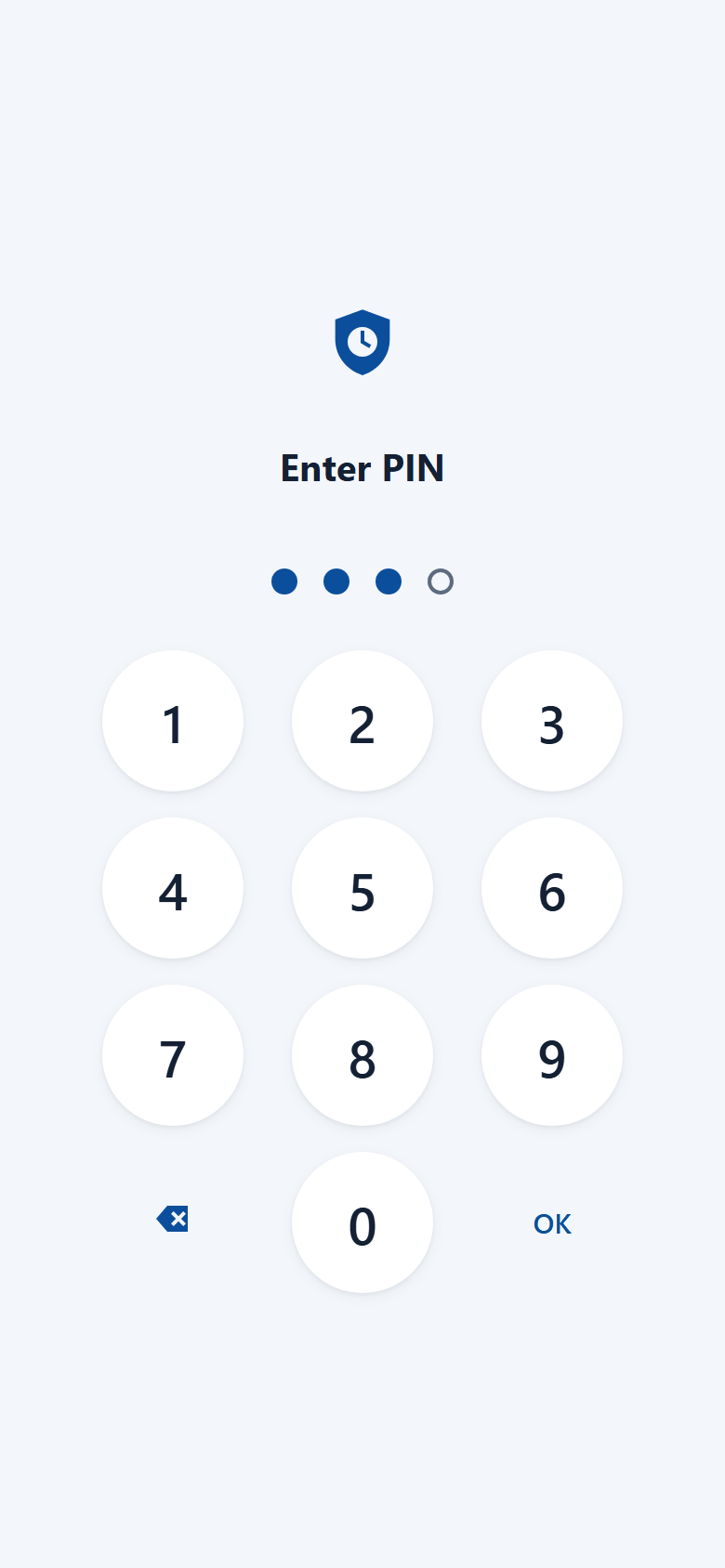
PIN and fingerprint lock

Lock the app with a PIN and open it with your fingerprint or face. Your keys are stored encrypted with the PIN, and the app locks again when you leave it.

Encrypted backup

Save all accounts to one backup file locked with your password. Restore it on a new phone in a few taps.

Private by design

Screenshots and screen recording of the app are blocked, and Android cloud backup never copies your keys.

Turn on two-step sign-in in three steps

Open the website’s security pageFor example Google Account › Security, Microsoft › Security info, or WHM › Two-Factor Authentication. Choose “Authenticator app”.
Scan the QR codeIn TopBusiness Authenticator tap +, then Scan a QR code, and point the camera at the screen.
Type the code to confirmType the 6-digit code the app shows. From now on the website asks for a fresh code when you sign in.

Locked to you

TopBusiness Authenticator PIN lock screen
Your keys stay on the phoneTwo-step codes are only as safe as the keys behind them, so the app keeps them away from everything else.
  • Keys, codes and backups never leave the phone — the only thing sent is a once-a-day check-in (app version, trial or registered, the trial start day, the app language, Android version, phone model and a random install number; if registered also the licence name, its number of phones and a coded licence number)
  • PIN lock with encrypted storage; it locks again after 0, 30 seconds, 1 or 5 minutes
  • Fingerprint or face unlock uses Android’s own secure check, and turns itself off if a new fingerprint is added to the phone
  • Too many wrong PINs and the app waits before the next try
  • Screenshots, screen recording and Android cloud backup are blocked
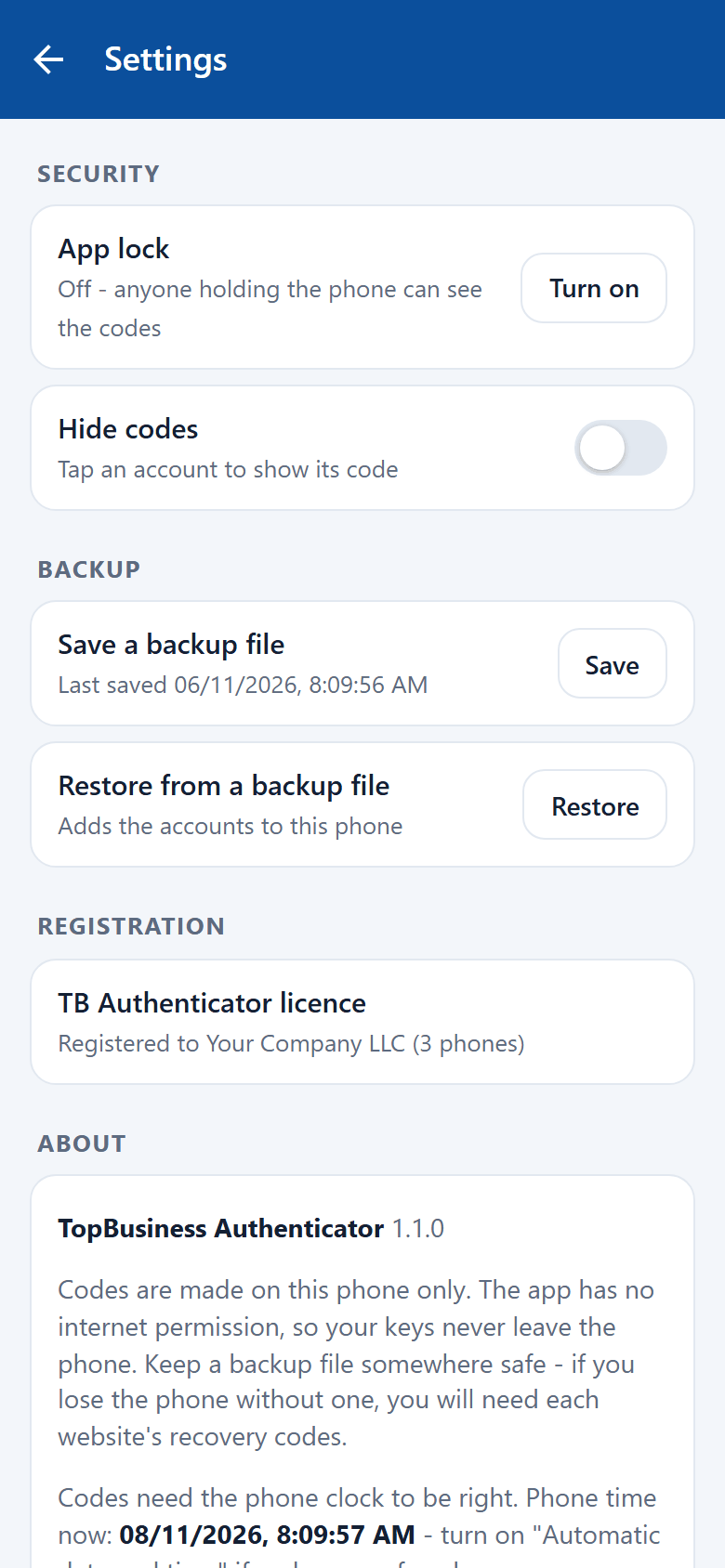
Hide codes from people nearbyTurn on “Hide codes” and each code stays hidden until you tap its account — handy in meetings and on a shared desk.

Never lose your codes

One backup file, locked with your passwordSettings › Save a backup file writes all your accounts to one file, encrypted with a password you choose.
  • Keep it on your PC, a USB stick or your company drive
  • Nobody can open it without your password — not even TopBusiness
  • The app shows when you last saved a backup
New phone? Restore in a minuteInstall the app on the new phone, tap Restore from a backup file and type your password. Accounts already on the phone are not added twice.
Light and darkThe app follows your phone’s light or dark mode, with large codes that are easy to read at a glance.
TopBusiness Authenticator settings: app lock, hide codes, backup and restore

Questions

Which websites does it work with?

Any website or program that offers an “authenticator app” for two-step sign-in (also called 2FA, MFA or TOTP): Google, Microsoft 365, WHM and cPanel, Proxmox, GitHub, Amazon Web Services, Facebook, Instagram, banks that allow authenticator apps, and many more.

How do I install it?

Open this page on your Android phone and tap Download. When the download finishes, open the file and allow your browser to install apps if Android asks. The app is not in the Google Play Store.

Does it need the internet?

No. Codes are worked out on the phone from the setup key and the phone’s clock, and everything works offline. When there is a connection, the app goes online once a day only to tell topbusinesserp.com that it is in use (app version, trial or registered, the trial start day, the app language, Android version, phone model and a random install number; if registered also the licence name, its number of phones and a coded licence number). Keep “Automatic date and time” turned on in Android settings, because codes are refused when the clock is wrong.

What if I lose my phone?

Restore your backup file on the new phone. Without a backup you will need the recovery codes each website gave you when you turned on two-step sign-in — so save a backup file after adding your accounts.

How does the free trial work?

Install and use everything for 30 days, no sign-up needed. After 30 days your codes keep working — you are never locked out — but adding new accounts needs a registration code. Buy below and enter the code in Settings › Registration. One code works on up to 3 phones.

Is there an iPhone version?

Not yet — TopBusiness Authenticator is for Android phones and tablets with Android 8 or newer.

TopBusiness Authenticator is written by TopBusiness. It makes standard one-time codes (RFC 6238 and RFC 4226) that work with any service offering an authenticator app. QR codes are read with jsQR (Apache License 2.0). Google Authenticator is a trademark of Google LLC; TopBusiness is not connected with Google.
Buy — one price, for life

One registration code works on up to 3 phones. Pay once — every update is included.

1 Your details2 Payment3 Your code by e-mail

Your details